<?xml version="1.0" encoding="utf-8"?><feed xmlns="http://www.w3.org/2005/Atom" ><generator uri="https://jekyllrb.com/" version="3.10.0">Jekyll</generator><link href="https://cyb.org.uk/feed.xml" rel="self" type="application/atom+xml" /><link href="https://cyb.org.uk/" rel="alternate" type="text/html" /><updated>2025-06-05T14:45:54+00:00</updated><id>https://cyb.org.uk/feed.xml</id><title type="html">cyb.org.uk</title><subtitle>blogging about technology &amp; open source</subtitle><author><name>Cy Borg</name></author><entry><title type="html">Choosing a new bookmarking/read later service</title><link href="https://cyb.org.uk/2025/06/05/self-hosted-bookmarking.html" rel="alternate" type="text/html" title="Choosing a new bookmarking/read later service" /><published>2025-06-05T00:00:00+00:00</published><updated>2025-06-05T00:00:00+00:00</updated><id>https://cyb.org.uk/2025/06/05/self-hosted-bookmarking</id><content type="html" xml:base="https://cyb.org.uk/2025/06/05/self-hosted-bookmarking.html"><![CDATA[<p>I used the Mozilla Pocket service until recently. I had a few hundred bookmarks,
mainly work-related articles, recipes and decent articles I wanted to keep for future reference. For some reason, while I bookmark stuff in Firefox, I have a bunch of common sites on the bookmark toolbar but never delve into my stored bookmarks. Out of site and out of mind, and also I might remember the content of the page but not the title, in which case, a bookmark doesn’t help, and I rely on browser history and resort to a search engine again.</p>

<p>When I used Pocket, the one-click integration and easy tagging within Firefox worked nicely, and I was generally happy. I even liked the selection of popular articles Firefox would display on the new tab screen by default.</p>

<p>When Mozilla announced they were terminating Pocket, I decided to look at the alternatives. I’ve <a href="/2024/01/29/self-hosted-archive"><strong>mentioned previously</strong></a> that I use ArchiveBox as a self-hosted internet archive to insure against link-rot. My use case for a bookmarking system is a little different - primarily to keep collections of useful sites that I will need to refer to now and again, but I’m open to using a combined bookmarking plus archive solution if all my needs were met.</p>

<h2 id="wallabag">Wallabag</h2>

<p><a href="https://wallabag.it/en/"><strong>Wallabag</strong></a> was the first solution I looked at, since it was recommended by some contented users on various fediverse threads, following the Mozilla Pocket announcement. It’s a hosted, paid service that also allow self-hosting due to the FOSS-licenced code. In particular I was interested to see that with a little extra work, I could send epubs to a Kobo reader.</p>

<p>I have a couple of low-powered Wyse 5070 boxes for self-hosted solutions and try to use docker where possible to deploy a new service in order to avoid polluting my system with too many packages, and containers also add the possibility to bring a service up easily on another server.</p>

<p>After reading documentation/blogs and watching some YouTube videos, I eagerly set about installing Wallabag via Docker using their <a href="https://github.com/wallabag/docker"><strong>docs</strong></a>. Unfortunately I had a few issues. The blogs I’d seen had mainly used the <code class="language-plaintext highlighter-rouge">apt install</code> method, and it made me wonder about the efficacy of the Docker method.</p>

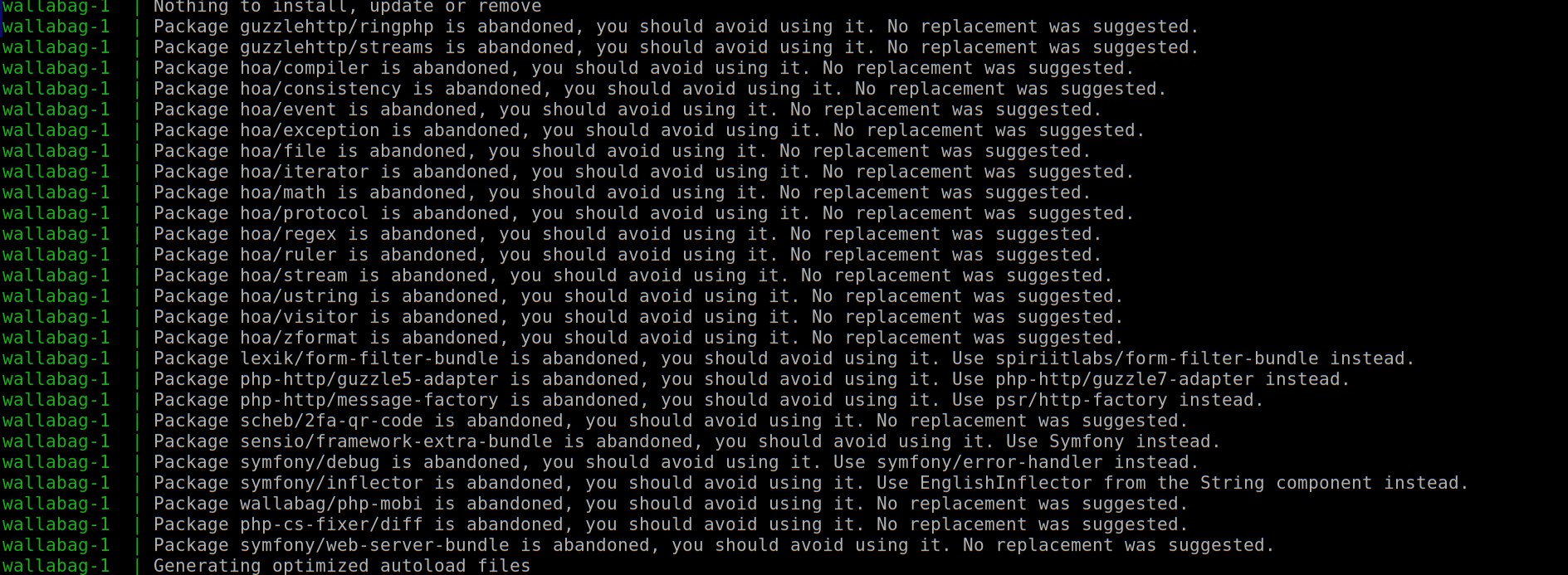
<p>My first concern was all the warnings I saw when bringing up the container.</p>

<p><img src="/assets/images/walla-warnings.jpg" alt="" /></p>

<p class="image-caption"><em>Warnings about abandoned packages made me worry</em></p>

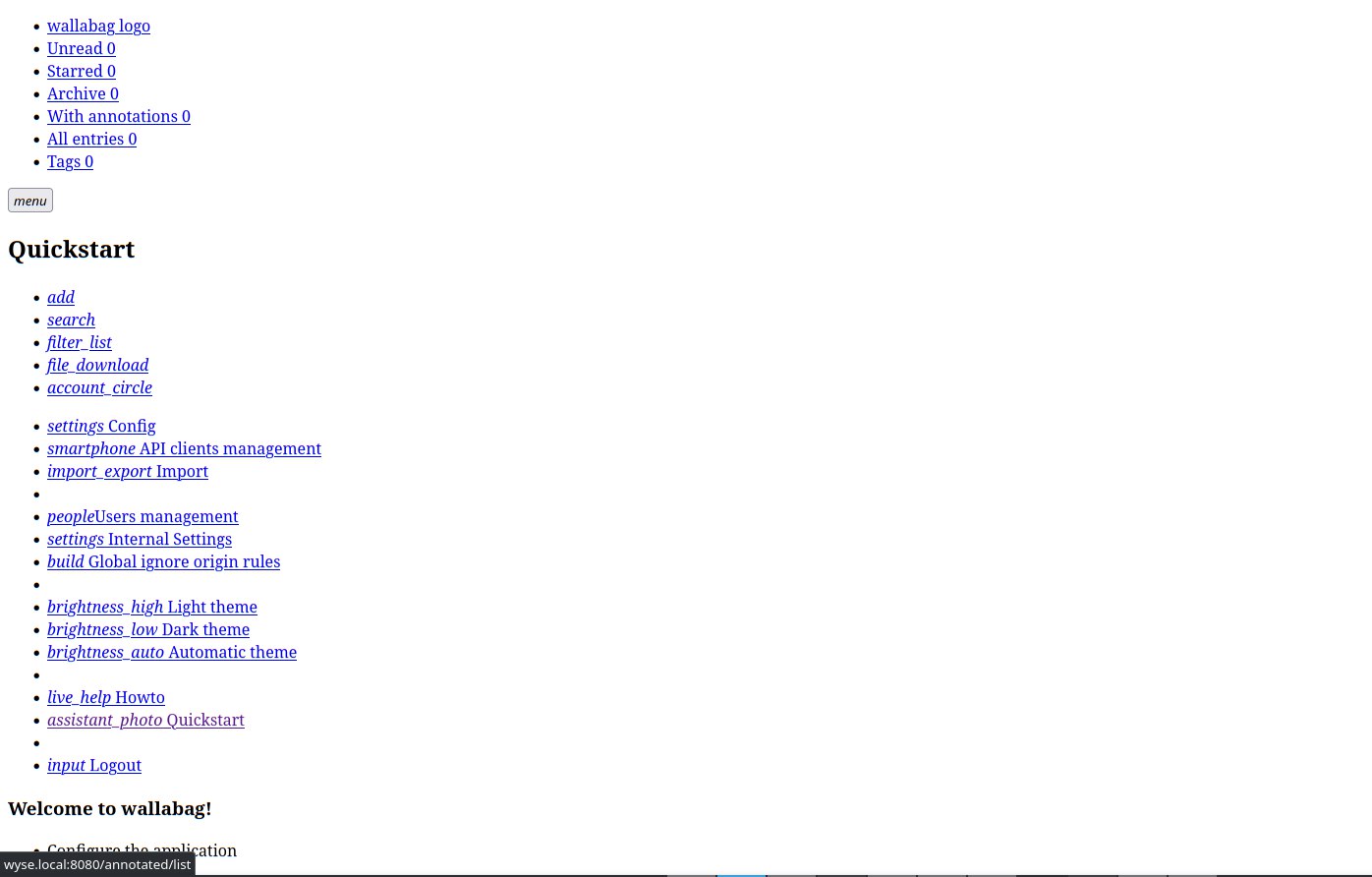
<p>The container didn’t come up successfully for another reason and I still needed to play around a bit. I hoped the effort would be worth it.</p>

<p><img src="/assets/images/walla-oof.jpg" alt="" /></p>

<p class="image-caption"><em>Something aint right</em></p>

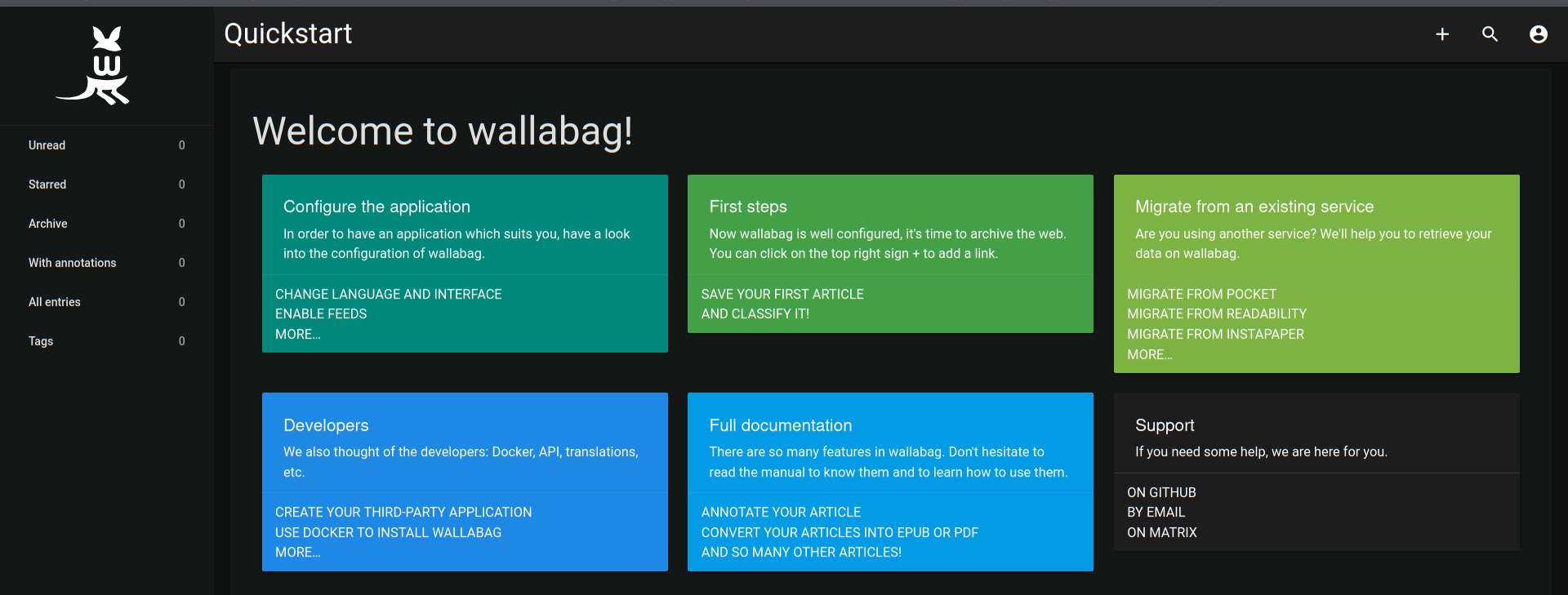
<p>After some fruitless searching, I left my workstation for a while and cooked dinner for the family. I returned with renewed vigour and inspiration and found <a href="https://github.com/wallabag/wallabag/issues/7953"><strong>this</strong></a> issue that suggested using IP address in my config instead of localhost caused the page to load correctly.</p>

<p><img src="/assets/images/walla-working.jpg" alt="" /></p>

<p class="image-caption"><em>Et voila, working wallabag</em></p>

<p>I also experienced several serious errors while attempting to import bookmarks from Pocket. One of those was a PHP memory limit which I needed to set very high, even for my small set of bookmarks.  There are several recent Github issues and it seems that fixes are being worked on for most of my issues.</p>

<p>After all this, I had a working installation, but the experience had left a sour taste. Should I be worried about all those abandoned packages in the Docker deployment process and the bookmark import issues, suggesting a rather over-engineered solution for my self-hosted use case?</p>

<p>I’m sure that the most (particularly non-Docker) users have had a much smoother experience, but I got off on the bad foot and while I was evaluating one service, I thought I’d also try the other bookmarking service that I’d heard about, namely Karakeep.</p>

<p><strong>Things I liked about wallabag</strong>: decent UI, ability to send articles to an e-reader, optional centrally hosted service available</p>

<p><strong>Things I didn’t like</strong>: as the ultimate administrator of the system, I was put off by the bugs and issues I experienced, and the more heavyweight requirements (mysql instead of sqlite, etc) perhaps suggest this is service designed for a larger scale than my lightweight needs.</p>

<h2 id="karakeep">Karakeep</h2>

<p><a href="https://karakeep.app"><strong>Karakeep</strong></a> has recently been renamed from Hoarder because someone with a similar-named app was causing trouble, and life’s too short for that kind of hassle. Karakeep certainly performs better in SEO ranking than a common word, but since the name change is so recent, most blogs and Youtube videos still refer to the less distinctive old name. Even the Firefox extension still used the old name in one of the notifications I saw.</p>

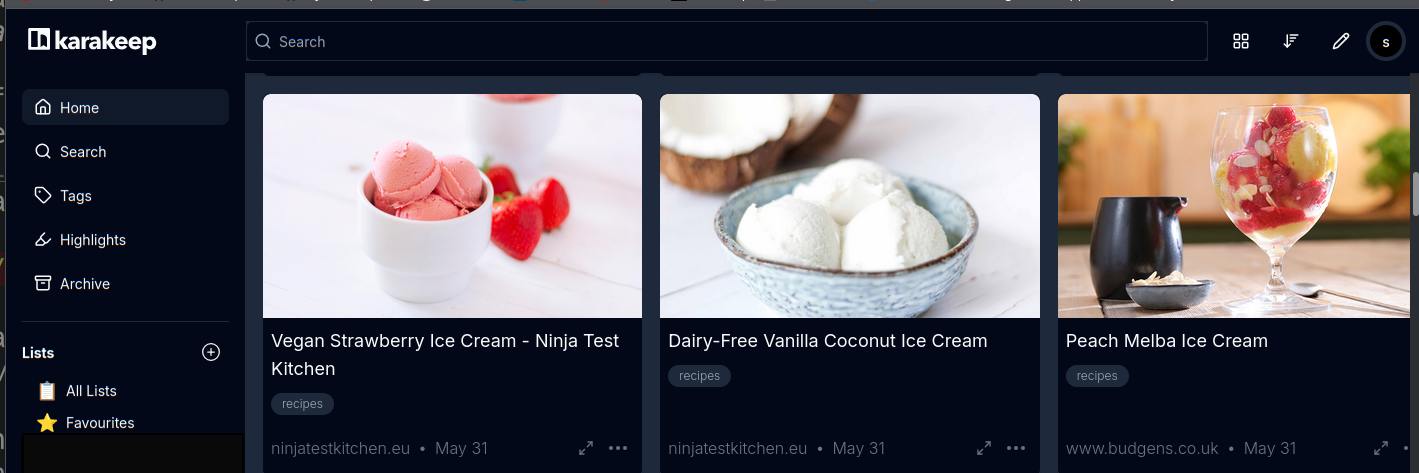
<p>I was able to deploy a container in a few minutes using the <a href="https://docs.karakeep.app/Installation/docker/"><strong>Docker compose file</strong></a>.</p>

<p><img src="/assets/images/karakeep-1.png" alt="" /></p>

<p class="image-caption"><em>So far, so good</em></p>

<p>Like Wallabag, Karakeep has a browser extension to allow bookmarking with a single click. It also has an extensive import/export section to allow Picker/Linkwarden and Tab Session Manager bookmarks to be imported, as well as the Karakeep exports for backup/migration purposes.</p>

<p>It was lacking the epub functionality for reading later on e-readers, but I chose to overlook that for now. It also has an Archive feature that saves the file using Singlefile. It’s also possible to configure the SingleFile browser extension to send a page straight to Karakeep. At this point I was super happy, and had already decided this was the solution to choose, over Wallabag.</p>

<p>I should probably mention that there is an optional AI feature to obtain video transcripts and determine tags using various APIs to AI services, but I wasn’t interested in those features for now.</p>

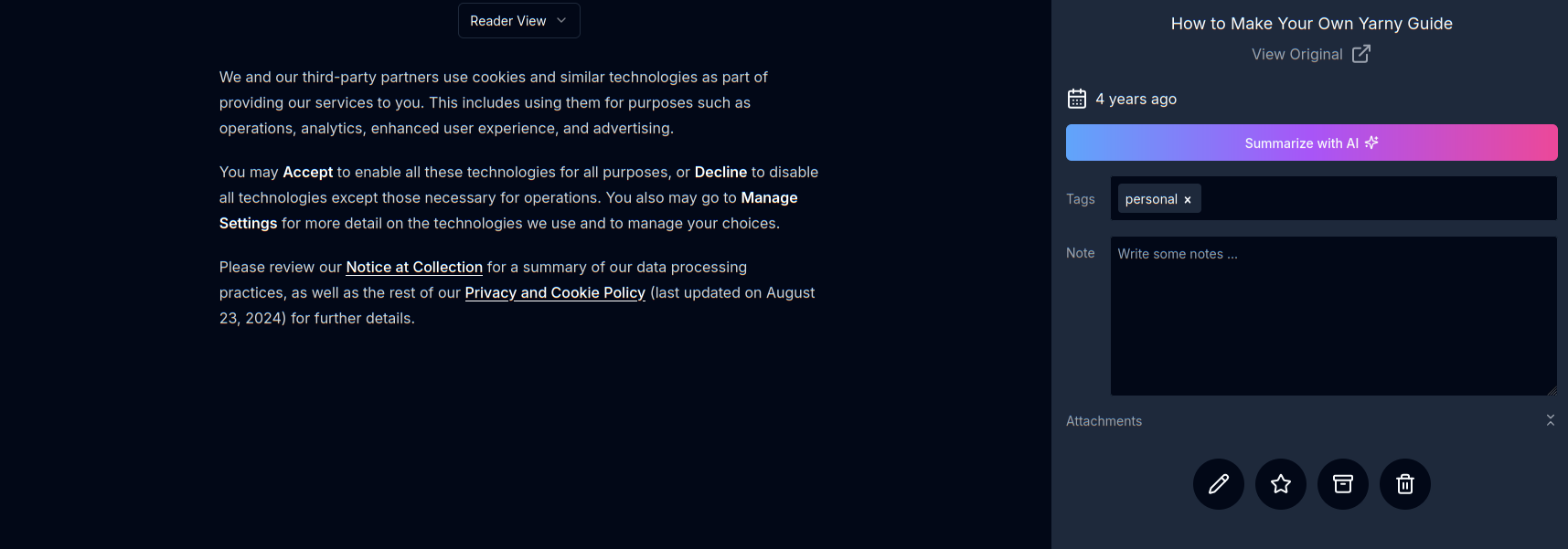
<p>Everything was going great until I noticed that quite a few of the pages I had bookmarked were not displaying their local copy correctly due to the cookie acceptance page that is displayed for EU citizens.</p>

<p><img src="/assets/images/karakeep-2.png" alt="" /></p>

<p class="image-caption"><em>Not what I should be seeing here</em></p>

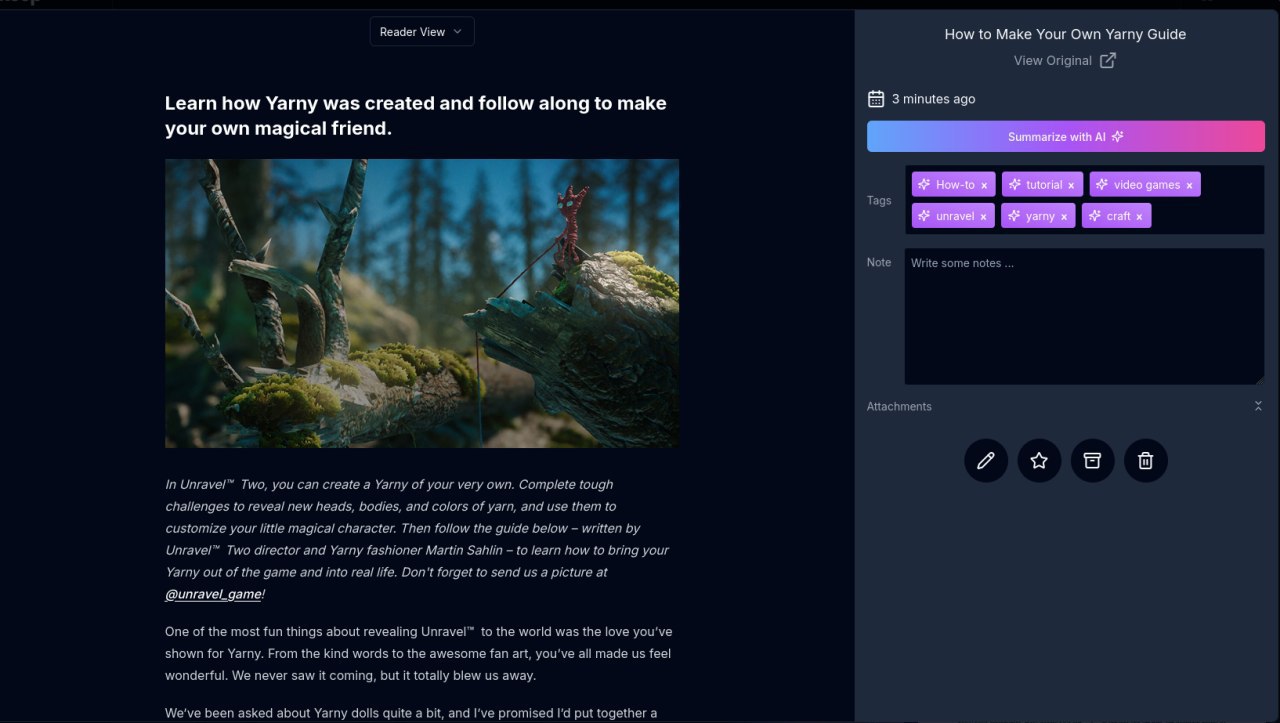
<p>I asked someone based outside of the EU to try one of the problematic links. They had greater success (you can also see the AI tagging in action too on this screenshot):</p>

<p><img src="/assets/images/karakeep-3.png" alt="" /></p>

<p class="image-caption"><em>This is what I should be seeing</em></p>

<p>I found an <a href="https://github.com/karakeep-app/karakeep/issues/414"><strong>issue</strong></a> describing the problem. Someone suggested building a container for Chrome that installs an extension to ignore cookie banners, but I’m just not sure I wanted to go down that rabbit hole, for something that may or may not work, and will likely need housekeeping upon future upgrades.</p>

<p>I really want a solution that I can trust to store bookmarks and local copies of articles without having to keep checking if it’s worked OK. I realise that Pocket never stored local copies but this feature is pretty compelling to me. Readeck was mentioned in a comment on the Github issue, and I was intrigued. So, I guess I was going to try the <em>third</em> attempt at a replacement for Pocket inside 1 week…</p>

<p><strong>Things I liked about karakeep</strong>: fast, nice UI, browser extension, decent android app, ability to additionally archive pages with SingleFile. Ingestion of RSS feeds (such as items that I’ve bookmarked on mastodon or reddit). I didn’t try the optional AI features but some people may find it helpful.</p>

<p><strong>Things I didn’t like so much</strong>: the dealbreaker cookie problem. Also, when viewing links in karakeep, the default action is to open the source website when clicked on - I think I’d rather read my local copy by default.</p>

<h2 id="readeck">Readeck</h2>

<p><a href="https:/readeck.org"><strong>Readeck</strong></a> is another self-hosted open source application to manage bookmarks. Installation options include Docker and also a single binary file. The documentation was very clear and easy to read. I opted for the binary file method, which was incredibly simple, and only required a port number to be specified. I also created a dedicated non-privileged user account to run the service, and a systemd file to automatically run at boot time.</p>

<p>Readeck uses sqlite to store data, which reduces the need for a database server, and in practice the interface is very fast, even on my low powered server. As with the other offerings I looked at, development is active despite the small team of developers, and Readeck sees releases every few months.</p>

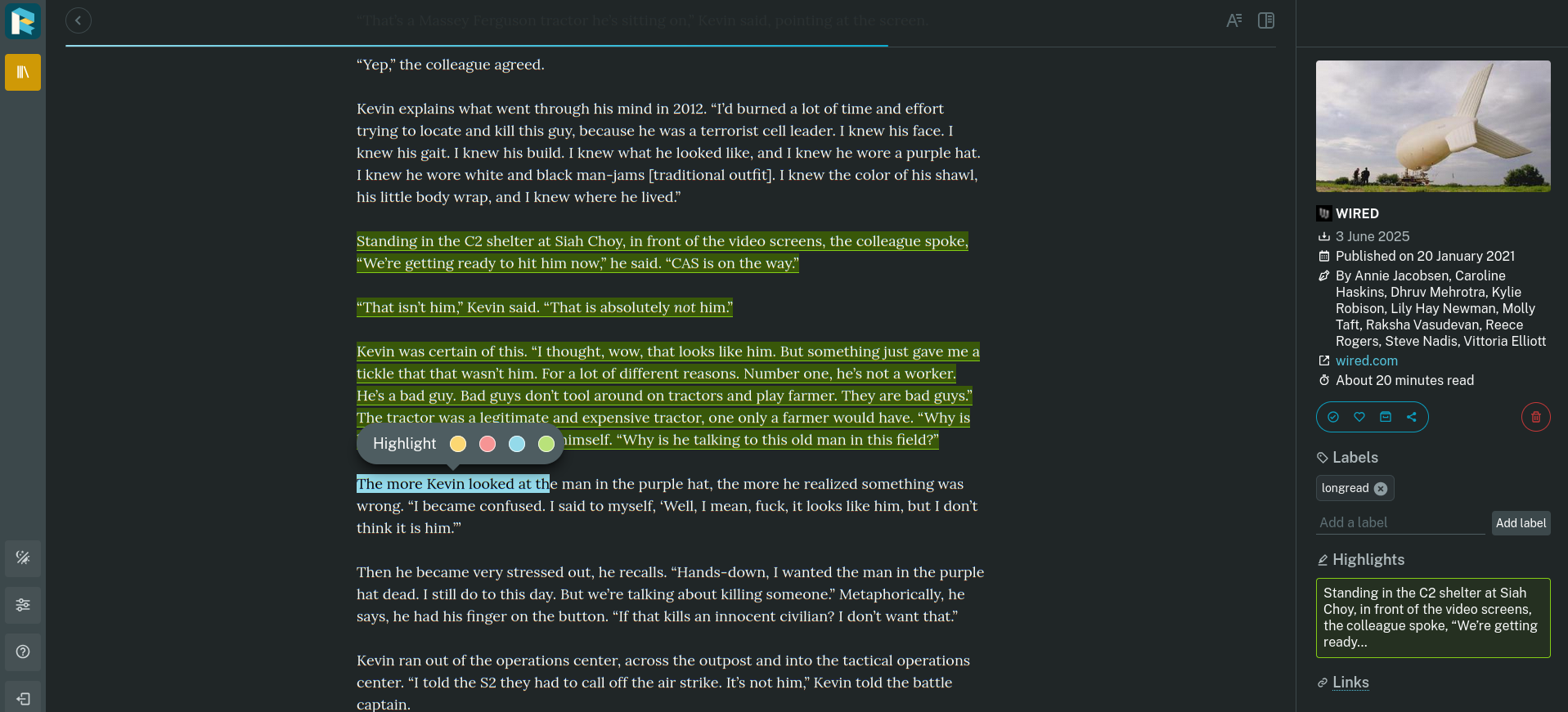
<p>Adding a link is either done manually by adding a link to the web UI, or preferably via the browser extension. I noticed that if the website is not an “article” (my interpretation is that it doesn’t offer a firefox reader view) then it gives a warning and suggests you might want to select text on part of the page and save that instead, which is a nice feature. Highlights are also a very nice tool, and multiple colours can be used, and there’s an aggregate view of all highlights available too.</p>

<p><img src="/assets/images/readeck-3.png" alt="" /></p>

<p class="image-caption"><em>Highlighting words in Readeck</em></p>

<p>Importing bookmarks from various sources is possible, including Wallabag, Pocket, text file and Browser. Backup via export/import is also possible via the command line.
An unofficial <a href="https://github.com/jensomato/ReadeckApp?tab=readme-ov-file">Android application</a> is available on F-droid only, no Play Store for now.
Exporting for consumption by another application is currently possible via an API. I was able to extract a json file and parse it using <code class="language-plaintext highlighter-rouge">jq</code> to extract the bookmarks (<code class="language-plaintext highlighter-rouge">jq '.[].url' bookmarks.json</code>).</p>

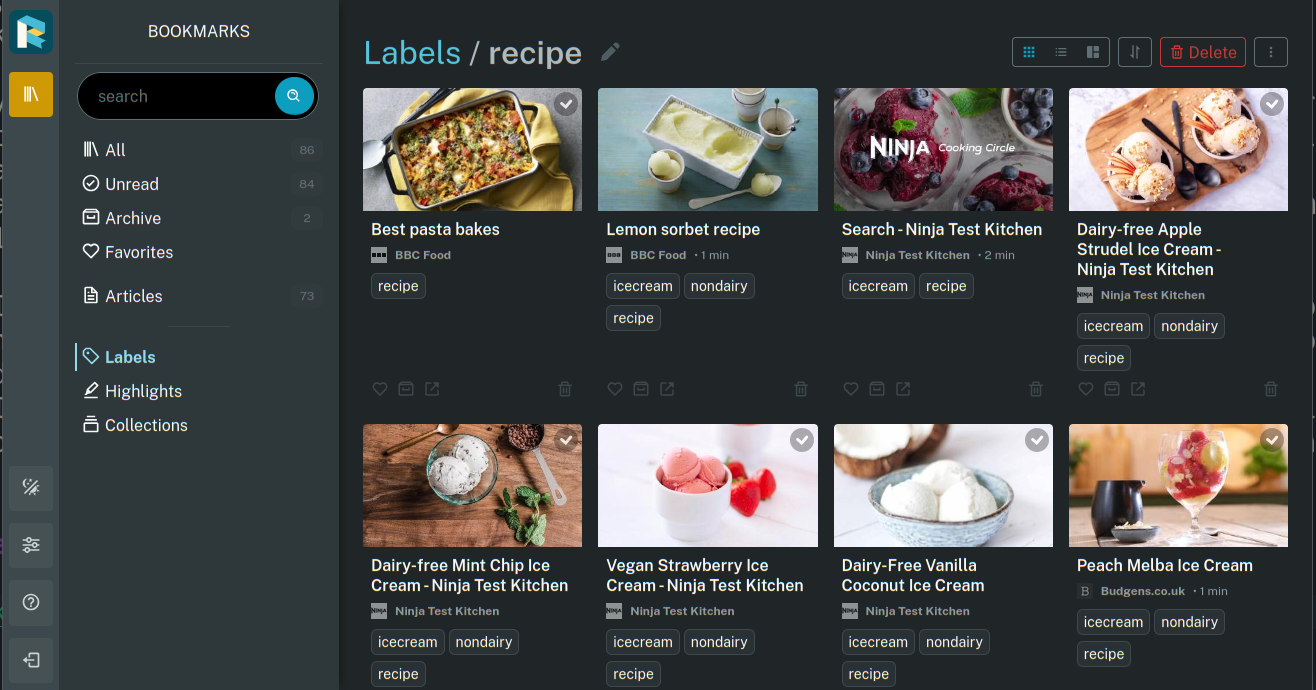
<p>Common to all these services is the tagging feature, and filtering by tag. It also has the concept of collections which are created based upon characteristics you choose, such as tag, title, media type, etc.</p>

<p><img src="/assets/images/readeck-1.png" alt="" /></p>

<p class="image-caption"><em>Viewing bookmarks matching a specific label/tag</em></p>

<p>Search is very fast and flexible, and will provide matches from within the main body of text.
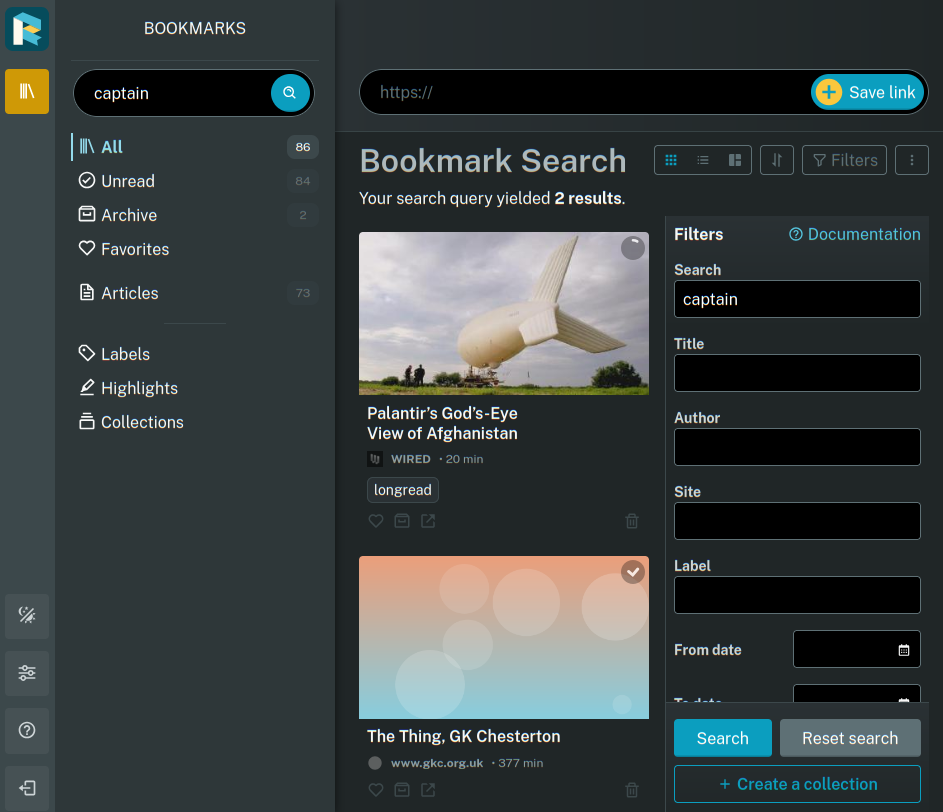
<img src="/assets/images/readeck-2.png" alt="" /></p>

<p class="image-caption"><em>Matches for the word “captain” anywhere in the text</em></p>

<p>The Readeck app is performant, but currently very basic - no search of any kind, even tags is possible yet. However the mobile website provided by Readeck itself is full featured and is currently a better option unless you just want to passively consume a list of bookmarks via the app.</p>

<p>A very nice feature is the ability to download one or all articles as epub. Some <em>long read</em> articles can take an hour or more to read, and I like to use an e-reader for that. At the moment I’m manually sending the downloaded epub to my Kindle via “Send to kindle” website, so I need to work out a workflow to automate this, but the results are great:</p>

<p><img src="/assets/images/readeck-4.png" alt="" /></p>

<p class="image-caption"><em>Reading an article on my Kindle Scribe after downloading as epub</em></p>

<p><strong>What I like about Readeck</strong>: easy installation, browser extension, epub downloads, fast &amp; intuitive UI, good range of features.</p>

<p><strong>What else I’d like to see</strong>: there’s not much to dislike here. Maybe a couple of tweaks to the UK might help me find the right option more easily (such as bookmark export/import), but it’s a really minor niggle. A feature such as optional archival of the page using SingleFile would really be the cherry on top of the cake for me. I’ve seen it discussed positively in the Enhancement requests, so maybe it will be a future addition, even one that might replace my use of Archivebox for permanent archival of pages. One other <a href="https://codeberg.org/readeck/readeck/issues/424"><strong>requested feature</strong></a> is ingestion of RSS feeds. This is possible within Karakeep, and I would potentially find this useful too.</p>

<h2 id="summary">Summary</h2>

<p>I can see why there are happy users of each of the solutions I have looked at. All of them appear to offer more than the original Pocket service. Depending on your use-case, they all fit the bill to some extent, and I wish them all success. I’ve settled on Readeck, due to the most pleasant all-round experience and features that suit my requirements. It’s a joy to use, and maybe as a result I can reduce my habit of keeping 200+ open tabs while I’m working on a project.</p>

<h2 id="side-note">Side note</h2>

<p>Full details are a bit out of scope of this blog post, but…one of my requirements is mainly using this service while at home on my private LAN. In future I may deploy tailscale or a VPN to access this service. During my experiments, the version of the readeck app I was using did not allow http access or self-signed certificates (I believe this is soon to be allowed). However, this did send me down a rabbit-hole, and I also used <code class="language-plaintext highlighter-rouge">caddy</code> for the first time, to serve https connections via reverse-proxy, and I was able to obtain a LetsEncrypt certificate for my internal-only server using DNS-01 challenge. This involved adding a public DNS entry with my DNS provider (OVH), and using the OVH DNS plugin to caddy.</p>]]></content><author><name>Cy Borg</name></author><category term="article" /><category term="productivity" /><category term="self-hosted" /><summary type="html"><![CDATA[I used the Mozilla Pocket service until recently. I had a few hundred bookmarks, mainly work-related articles, recipes and decent articles I wanted to keep for future reference. For some reason, while I bookmark stuff in Firefox, I have a bunch of common sites on the bookmark toolbar but never delve into my stored bookmarks. Out of site and out of mind, and also I might remember the content of the page but not the title, in which case, a bookmark doesn’t help, and I rely on browser history and resort to a search engine again.]]></summary></entry><entry><title type="html">Initial thoughts on the Kindle Scribe</title><link href="https://cyb.org.uk/2024/06/06/kindle-scribe-likes-and-dislikes.html" rel="alternate" type="text/html" title="Initial thoughts on the Kindle Scribe" /><published>2024-06-06T00:00:00+00:00</published><updated>2024-06-06T00:00:00+00:00</updated><id>https://cyb.org.uk/2024/06/06/kindle-scribe-likes-and-dislikes</id><content type="html" xml:base="https://cyb.org.uk/2024/06/06/kindle-scribe-likes-and-dislikes.html"><![CDATA[<p>I like the idea of e-ink devices, and often think about how much I could make
use of an e-ink tablet which allows writing with a stylus. The marketing hype
would suggest that it’s a life changer, which seems a bit strong, since they
essentially aim to perform a similar function to pen and paper. Recently I
impulsively purchased a Kindle Scribe without having done much research on it.
I’ve had a lot of thoughts swirling round since receiving it. Here is an
attempt to put them into positive/negative categorisation.</p>

<h2 id="context">Context</h2>

<p>I read a fair mix of non-fiction and fiction, either on the train, in the
garden on a sunny day, in bed with the lights out, or a quick 10 minutes in a
waiting room. Some people aren’t keen on reading ebooks, but I am quite content
to read on an e-ink device (I own an early generation kobo and a kindle of
similar vintage), or via an android tablet for shorter periods. I own a lot of
paper books, but most were bought before ebooks became popular, or I needed a
nicely formatted textbook, plus there are quite a few paper books i bought
because they were cheaper to buy 2nd hand. I always check if a book is
available from my library via Borrowbox or Libby before purchase.</p>

<p><img src="/assets/images/scribe2.png" alt="" /></p>

<p class="image-caption"><em>Reading an ebook on the Kindle 4th Generation (L) alongside the Scribe (R).</em></p>

<p>I own a pile of notebooks and favourite pens and regularly write lists, doodle
and take notes. I’ve watched the Remarkable tablet from afar, and I think it
looks really nice.  Unfortunately the price, and lack of built-in illumination
put me off. But mostly the price. Similarly the Supernote looks great but I
would really have to be convinced of the benefits before shelling out over £400
for lifestyle device.</p>

<p>These devices remained something that I would “buy if I was rich”. Then, my
manager told me that he’d picked up a new, sealed 32GB Kindle Scribe for less
than half the retail price, via an auction house (not eBay) - probably
liquidated stock from a company closure, or surplus stock after a change of
strategy. The price was compelling enough to make an impulse purchase; an
uncharacteristic decision to buy something without fully researching it to my
usually obsessive degree. I did however, spend a good deal of time researching
after the purchase, to convince myself that I’d made a good decision. I also
spent a lot of time researching cases…</p>

<h2 id="the-kindle-scribe">The Kindle Scribe</h2>

<p>It’s a monochrome e-ink device, with a lovely 10.2 inch 300ppi screen, plus a
stylus. I watched quite a few YouTube videos between purchasing and receiving
the device, and I developed a picture of what it can do. As is typical with
YouTube, the most sensational content rises to the top, and some of the
drawbacks I’ve experienced weren’t covered. Some of this is due to the fact
that a lot of the videos were made shortly after release - most of the negative
criticism seemed to refer to the most obvious deficiencies which have largely
been resolved by subsequent releases.</p>

<p>I’m going to list a few likes and dislikes I’ve discovered while using the
device for a short while. I might refer to the competing devices in the market
but this isn’t intended as a comparative list. The Scribe seems to stand alone
in the market as it appears to be a reading device that happens to have some
annotation features. The Remarkable and Supernote appear to primarily be
note-taking and planning tablets with e-reading capabilities.</p>

<p>Annotation of ebooks takes the form of sticky notes which can be handwritten.
Once a note is added, a small icon appears in the text to denote presence of
the note. You can tap on it to view the content. Usually I find that by also
highlighting the text, it draws the eye a bit better to the existence of a
note. A PDF of all the notes and highlights can be emailed to yourself, or
viewed directly on the Kindle.</p>

<p><img src="/assets/images/scribe4.png" alt="" /></p>

<p class="image-caption"><em>Adding a handwritten note to an ebook</em></p>

<p><img src="/assets/images/scribe5.png" alt="" /></p>

<p class="image-caption"><em>Subsequently viewing all notes and highlights</em></p>

<p>Annotation of PDFs is more intuitive and allows you to write directly on the
page. You can email yourself the PDF and it will contain your handwritten
annotations within the document.</p>

<p><img src="/assets/images/scribe3.png" alt="" /></p>

<p class="image-caption"><em>Making notes directly onto a PDF</em></p>

<h3 id="likes">Likes</h3>

<ul>
  <li>The 10.2 inch screen is a nice size, and reading ebooks is really enjoyable
on a larger screen. Build quality feels good, which is also to be expected,
given the competition.</li>
  <li>The backlight is an essential feature for me, as I tend to read a lot at
night. One feature I’m particularly happy about is the warm/cool backlight
option - brightness and warmth are configurable on a sliding scale.</li>
  <li>The supplied “premium pen” stylus is pleasant enough to write with, and is
pressure sensitive. Apparently the nibs wear down after a while, and you are
supplied with a spare set in the box. Replacements are not too expensive. It
has a button which can be assigned to erase/highlight, and an eraser on the
tip. It would have been nice if the eraser was made of a softer rubber, like
the Remarkable.</li>
  <li>Battery life is excellent, and in occasional use, you might go weeks between
charges. Writing uses a bit more battery than reading. Note also that the
stylus is a fancy Wacom pen which doesn’t require charging. It magnetically
attaches to the side of the Kindle.</li>
  <li>Within the note-taking tool, an adequate range of pen/pencil/marker pens and
thicknesses are available.</li>
  <li>Since you can write directly onto PDFs, it’s possible to create your own
planner/calendar/to-do list page to your liking. Alternatively the notebook
feature provides a selection of templates to choose from.</li>
  <li>OCR of handwritten notes is provided at no extra cost or subscription.</li>
  <li>Auto rotate functionality allows 180-degree rotation, however switching PDF
views from portrait to landscape requires tapping an option in the Aa font
menu. The large screen size means than 2-column landscape view is possible for
ebooks is possible.</li>
</ul>

<p><img src="/assets/images/scribe6.png" alt="" /></p>

<p class="image-caption"><em>2 column landscape view for ebooks is a nice option to have</em></p>

<h3 id="dislikes">Dislikes</h3>

<p>There’s a few annoyances I have. It’s frustrating because most of them are
software issues that could be fixed with some focussed development and effort,
which would make it the best device for combined reading and note taking
device. It’s a real shame that the note taking and productivity side isn’t
getting focus here - it feels like the key aim is just to shovel more kindle
books into the hands of users, instead of genuinely providing a brilliant
all-round reading and writing device. It really feels within their reach if
they wanted it. I’ve seen note-taking, annotation and sketching features on the
Supernote and Remarkable that could easily be added to the Scribe, whereas
those devices are primarily focused on writing and lack an integrated
backlight. So onto, the things I’d like to see improved:</p>

<ul>
  <li>File management is pretty poor, including filtering and moving files around.
I ultimately decided on using Collections to manage which books I see at any
given time.</li>
  <li>Document import/export doesn’t make use of any cloud drive services (apart
from your Kindle library automatically appearing on the device, complete with
progress synchronisation). To send other
PDFs or ebooks to the Scribe, you have three options: email them to your
device’s unique kindle email address, use the “Send to Kindle” web site, or
connect a usb cable and use Calibre to manage your collection. Once a PDF has
been annotated, you select an option on the Scribe to email the new PDF, or
alternatively an OCR’d text file, back to you. This lack of automated
workflow means that integration with tools such as Obsidian are rather
manual.</li>
  <li>PDFs of handwritten notes are a bit of a disappointing quality - I’m seeing
jagged edges that weren’t there on the original.</li>
  <li>The official case is really expensive. At £55 for the cheapest fabric one,
and even more for the leather one, it feels exploitative. I wouldn’t want to
pay more than £25 for a case. I went for a third party case, out of necessity.</li>
  <li>Although I got my Scribe for a really good price, the retail price is a bit steep
for what is currently an e-reader with special bonus features.</li>
  <li>The screensaver is limited to either the book cover of the book you are
currently reading, or a selection of defined images which appear randomly. I
haven’t found a way to add my own images.</li>
  <li>One thing that bugs me is that if you are reading a PDF that has wide margins
for example, you can use the very nice pinch to zoom in order to read the
text comfortably, but you have to zoom out again before you turn the page. The
constant zoom in/out process isn’t really workable. The workaround for this is
to choose “Make layout adjustable” from the expandable menu in the “Send to
Kindle” web page. Effectively this converts the PDF to KFX format for reading
as a reflowable ebook. Since this conversion may lose formatting, this may not
be what you want though. Also, the PDF-&gt;KFX conversion will alter the
annotation style.</li>
  <li>You can only write freehand text directly on PDF pages and
with ebooks you can only add handwritten sticky notes - these both work a bit
differently. It’s a shame you can’t add freehand annotation to ebooks, but
exporting this in a readable format would be challenging I guess. Mixed
feelings about this one - I feel it should be better somehow but I’m not sure
how.</li>
  <li>Unfortunately, the ability to read Libby books on e-ink Kindles is limited to
USA only. Borrowbox doesn’t have the functionality at all either. This is
quite an annoyance as I am compelled to use my Android tablet to read
Libby/Borrowbox books.</li>
  <li>Amazon don’t offer a roadmap of upcoming features. It’s not a good idea to
buy a device based on promised features, but it would be nice for users to at
least know there’s a chance…</li>
</ul>

<p><img src="/assets/images/scribe1.png" alt="" /></p>

<p class="image-caption"><em>Photo of a monitor (L) displaying an exported PDF notebook, alongside the original notes on a (backlit) Scribe (R)</em></p>

<h2 id="summary">Summary</h2>

<p>How does the Scribe change things for me? Having a larger e-ink screen that I
can use at night means that I will go for ebooks ahead of paper books in most
cases now. I’m also going to make a better effort to manage my chaotic ebook
library. I also find that I’m using my 4th Generation Kindle more when I’m out
and about, for those short 10-15 minute time periods, since it’s more portable,
and my reading state is synced on both devices. Hopefully it encourages me to
use my phone less for idle browsing. I will also reach for the Scribe instead
of a paper notebook for planning, meeting notes and to-do lists. Time will tell
how effective this will be. I will still likely carry a small notepad, along
with a Fisher Space Pen around with me to scribble notes on, since the Scribe
isn’t exactly an everyday carry item.</p>

<p>I do like this device, and it was a good buy at the price I paid. At
the moment it’s a very nice e-reader with some note taking and annotation
features. It could be a very compelling all-round productivity, writing and
reading tool if Amazon put the effort into the necessary software updates, but
I’m not convinced they will.</p>]]></content><author><name>Cy Borg</name></author><category term="article" /><category term="productivity" /><category term="gadgets" /><summary type="html"><![CDATA[I like the idea of e-ink devices, and often think about how much I could make use of an e-ink tablet which allows writing with a stylus. The marketing hype would suggest that it’s a life changer, which seems a bit strong, since they essentially aim to perform a similar function to pen and paper. Recently I impulsively purchased a Kindle Scribe without having done much research on it. I’ve had a lot of thoughts swirling round since receiving it. Here is an attempt to put them into positive/negative categorisation.]]></summary></entry><entry><title type="html">Self-hosting an internet archive with ArchiveBox</title><link href="https://cyb.org.uk/2024/01/29/self-hosted-archive.html" rel="alternate" type="text/html" title="Self-hosting an internet archive with ArchiveBox" /><published>2024-01-29T00:00:00+00:00</published><updated>2024-01-29T00:00:00+00:00</updated><id>https://cyb.org.uk/2024/01/29/self-hosted-archive</id><content type="html" xml:base="https://cyb.org.uk/2024/01/29/self-hosted-archive.html"><![CDATA[<p>Last year I started using Obsidian in combination with some other tools to help with knowledge management. It’s quite common that I attempt to visit a web page to find the original content no longer exists, either as a result of the usual link-rot where websites die or get restructured, oreven due to wilful destruction of content in the case of many reddit pages, or nuking old content and domains as a result of company buy-out.</p>

<p>This year, I’ve decided to complement my personal management system by deploying <a href="https://archivebox.io/">ArchiveBox</a> to save content that I might want to read again in future. ArchiveBox is a self-hosted internet archive solution, that functions in a similar way to <a href="https://archive.org">archive.org</a>.</p>

<h2 id="why-self-host-an-archive">Why self-host an archive?</h2>

<p>Why would I need to self-host a solution when the wayback machine at archive.org functions as a useful archive of the whole web? Well, ArchiveBox not only preserves valuable content, but is also useful search engine for pages that I’ve saved. It’s quite common that I cannot recall exactly where I read something, and end up spending quite a while searching for it again from scratch on Google/search engine of choice, looking for links I’ve visited in the results. Good bookmark management cannot provide the exact website I need in this scenario. I often save websites to <a href="https://getpocket.com">Pocket</a> too, but disappointingly, this doesn’t allow text search - it is essentially just a bookmarking service -and there seems to be no sign of Mozilla open-sourcing the Pocket server code yet.</p>

<p>So, my main reasons to self-host an archive</p>
<ul>
  <li>archive.org is painfully slow, archivebox running on my LAN is fast</li>
  <li>I want to limit searches to only content that I’ve elected to save</li>
  <li>the pages I might want to see aren’t necessarily archived at archive.org (this could be easily remedied with a Firefox add-on)</li>
  <li>you can tag links in ArchiveBox, creating a useful knowledge base</li>
  <li>offline access - a repository I could use if I, or archive.org is offline is potentially useful</li>
</ul>

<h2 id="archivebox-features">ArchiveBox features</h2>

<p>ArchiveBox has a user-friendly UI, accessible via a web browser, plus fully featured command-line options, and an API is under current development. The web interface is clean and easy to use, and allows me to navigate my saved articles and read them in various formats, add tags to articles and filter by tag and/or date range, and perform a text search on the whole archive, which is going to prove very useful for me as a searchable knowledge base to complement the notes I make in Obsidian. I’m more likely to archive a bunch of sites and then write notes using this content afterwards, but it’s also going to prove very useful for things like doing market research - as someone who hires frequently, I often manually save PDFs of related job adverts in my sector, which typically get deleted as soon as the advertising window is closed.
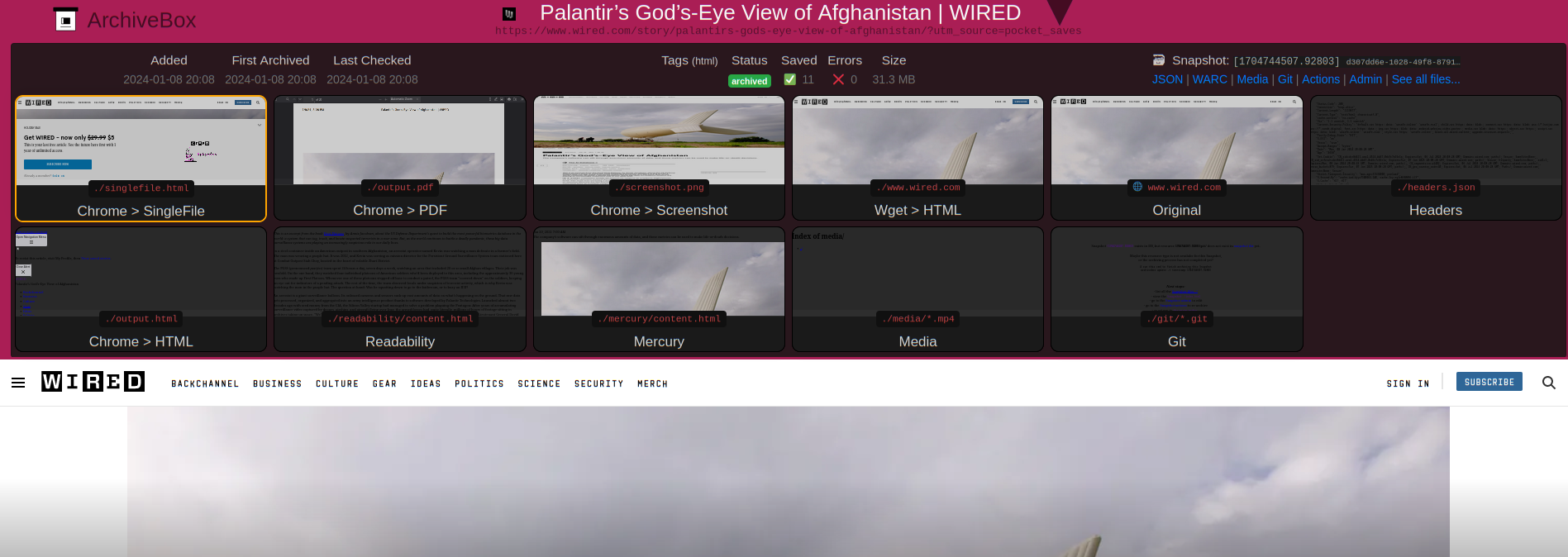
The UI also offers the option to take a new snapshot with the Re-Snapshot button.</p>

<p><img src="/assets/images/archivebox1.png" alt="" /></p>

<p class="image-caption"><em>Performing a text search on the archived content</em></p>

<p>Regarding search, the default is to use ripgrep on the backend to search the archive, which has been sufficient for me so far. There is also the option to use the Sonic search backend, which offers fuzzy text searching, but the documentation doesn’t explain enough for me to understand the difference, usage or benefits. There is an issue outstanding to improve the docs for the features offered by Sonic.</p>

<h2 id="archive-methods">Archive methods</h2>

<p>By default, ArchiveBox will save a copy of the required website using a variety of <a href="https://docs.archivebox.io/en/latest/README.html#output-formats">archival methods</a>, such as cloning with wget or using chrome headless mode to produce PDF, screenshot and singlefile archives. It will also automatically submit the site to archive.org (which I disabled due to personal preference), and will archive audio and video files using youtube-dl.</p>

<p>It’s a good idea to leave most of these methods enabled, since although the wget clone method is usually reliable, it sometimes doesn’t produce the desired results, while Chrome-&gt;Singlefile snapshots don’t allow replay of javascript, so you can’t minimise a banner that might be obscuring a page. The PDF results are usually very good, and there is also a text-only readability mode. One of these methods will provide the full article cleanly, even if another method fails for some reason.</p>

<p><img src="/assets/images/archivebox2.png" alt="" /></p>

<p class="image-caption"><em>Inspecting an archived article. The top banner showing the different archive methods is collapsible</em></p>

<h2 id="archivebox-deployment">ArchiveBox deployment</h2>

<p>I recently acquired a <a href="https://www.dell.com/en-uk/shop/cty/pdp/spd/wyse-5070-thin-client">Wyse 5070 Thin Client PC</a> for less than the price of a Raspberry Pi. It sips power and is completely silent. I replaced the existing M.2 SATA drive with a larger one, installed Ubuntu MATE 22.04, and deployed ArchiveBox using Docker, which had a well documented install procedure. I’m not a massive fan of Docker, but it seems like a good solution for this type of application, since there are a lot of dependencies would otherwise need keeping updated.</p>

<p>I have pi-hole on my network already, which reduces the ads, but there is a documented method of spinning up pi-hole docker instance to funnel requests through, in order to clean up archived content.</p>

<p>I had to add an <code class="language-plaintext highlighter-rouge">alias archivebox='docker compose run archivebox'</code> to simplify running various CLI administration tasks (e.g. running <code class="language-plaintext highlighter-rouge">archivebox config --get</code> to see the current configuration state).</p>

<p>Although there are some useful command-line options, most users will interact via the user-friendly web UI which starts on port 8000 by default, as it’s recommended to run as a non-root user. It’s possible to spin up an nginx container using docker to server this on more standard ports.</p>

<h2 id="deduplication">Deduplication</h2>

<p>ArchiveBox stores data in a user-friendly way, and it’s easy to inspect the content from the command-line. I soon realised that quite a lot of files were being duplicated (e.g a directory full of fontawesome fonts consumed 14MB, and appeared 5 times already on my small but growing archive. Not only fonts, but there’s quite a lot of overlap in the assets used by 2 articles archived from the same website. Although ZFS does block-level deduplication, it appears to be discouraged, certainly on lower powered systems. However <code class="language-plaintext highlighter-rouge">rdfind</code> does exactly what I need, in that it finds identical files and creates a hardlink instead, meaning that I can delete either copy of a file in future without breaking anything. On the first run of rdfind, I reduced the data capacity of my archive by over 30%. I added the following cron job to remove duplicates on a nightly basis:</p>

<div class="language-plaintext highlighter-rouge"><div class="highlight"><pre class="highlight"><code>0 22 * * * rdfind -makehardlinks true -outputname rdfind.log /home/archivebox/data/archive 
</code></pre></div></div>

<h2 id="adding-sites-to-the-archive">Adding sites to the archive</h2>

<p>You can snapshot a site, or list of sites via the command-line or web UI. You can import browser history, bookmarks, pocket, wallabag, etc. You can even schedule regular imports from RSS feeds.</p>

<p>However, adding a site manually is a bit jarring - I want to seamlessly send sites to the archive as I browse. <a href="https://addons.mozilla.org/en-US/firefox/addon/archivebox-exporter/">This extension</a> adds an option to the right-click context menu while allows me to send the current web page to the archive.</p>

<h2 id="issues-and-quirks">Issues and quirks</h2>

<p>All in all, I really like this project. If you heard of it a few years ago, you might want to take another look as there’s been a lot of improvements since. One feature I would love to see implemented is the ability to run user-scripts or extensions before the chrome export takes place. Quite a few export methods produce pages which are covered in cookie consent banners, and the ability to run something like “I still don’t care about cookies” when the snapshot takes place is desperately needed (Chrome headless mode doesn’t work with extensions). I’ve seen some issues mentioning Cloudflare, but I haven’t come across them yet.
Another issue is that I sometimes send a site to my archive but don’t realise that it requires authentication (such as a knowledge-base article behind a login-wall). It’s possible copy a chrome profile (containing a bunch of cookies) to the ArchiveBox server, and I have played a bit with this, but at one point I experienced an issue where new sites stopped getting archived because of a Chrome error saying the profile was already in use elsewhere. I’m not sure whether this is easily fixable but for the moment I’ve stopped using a custom Chrome profile with ArchiveBox.</p>]]></content><author><name>Cy Borg</name></author><category term="article" /><category term="blog" /><category term="self-hosted" /><summary type="html"><![CDATA[Last year I started using Obsidian in combination with some other tools to help with knowledge management. It’s quite common that I attempt to visit a web page to find the original content no longer exists, either as a result of the usual link-rot where websites die or get restructured, oreven due to wilful destruction of content in the case of many reddit pages, or nuking old content and domains as a result of company buy-out.]]></summary></entry><entry><title type="html">My note-making system for this year</title><link href="https://cyb.org.uk/2023/01/24/note-taking.html" rel="alternate" type="text/html" title="My note-making system for this year" /><published>2023-01-24T00:00:00+00:00</published><updated>2023-01-24T00:00:00+00:00</updated><id>https://cyb.org.uk/2023/01/24/note-taking</id><content type="html" xml:base="https://cyb.org.uk/2023/01/24/note-taking.html"><![CDATA[<p>The problem: I’m a tab hoarder. Anything I’m working on at the moment is generally kept in an open tab in Firefox, as work in progress. Typically I have 100-200 tabs open. Once I’ve finished a personal project, I close the tabs, sometimes bookmarking them first, but not really filing away the knowledge I’ve acquired in a useful way. Even when I’m documenting work projects, I’m not sure I’ve gathered the supporting information and ideas in a structured way. I’m not sure I’ve opened any bookmarks I’ve made in the last few years. When I want information back, I might fruitlessly search my history and end up using a search from scratch to find the information again. It’s a terrible system, and I rely too much on my memory and open tabs to recall information. Another side-effect is that my thoughts get stored in memory in an unprocessed state. I’m not getting any younger, and my reliance on storing everything in my brain is not future-proof.</p>

<h2 id="new-year-new-effort-to-de-clutter-my-brain">New year, new effort to de-clutter my brain</h2>

<p>So I’ve decided to outsource some of my brain to a computer this year. Each January I usually begin with a few weeks away from social media and endless web-surfing sessions to feed my hobby of information-gathering. During this period I tend to read more books, and think a lot more freely, as I’m not filling spare moments prodding at my phone screen.</p>

<p>What sort of things do I want to store in a personal knowledge system? Essentially, any useful information that I read online, in a book (paper or e-book), any ideas I have, notes on seminars I attend, or videos I watch. I want to collate all this information into a more coherent form that helps me arrange my thoughts - particularly for studying a new topic.</p>

<p>I’ve set a goal this year of reading 18 books. I tend to read rather a lot of non-fiction, so I tend to make a lot of notes at the same time. This could be via manual notes I make while reading a paper book, kindle highlights, or other methods such as PDF annotation or notes I’ve made while reading with the Libby library app.</p>

<h3 id="note-taking-apps">Note-taking apps</h3>

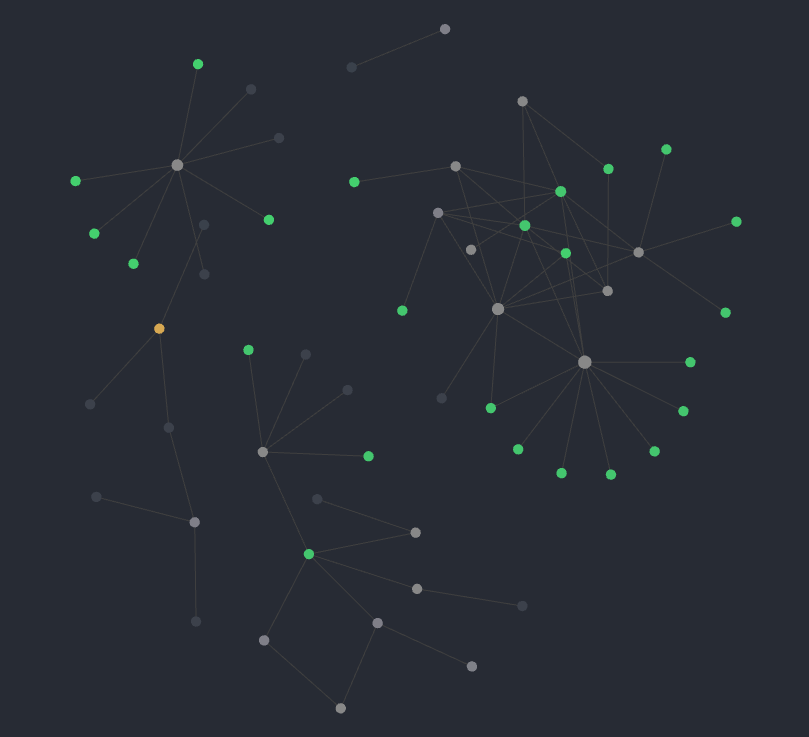
<p>In recent years, applications such as <a href="https://logseq.com">Logseq</a> and <a href="https://obsidian.md">Obsidian</a>, among others, have gained in popularity. These are marketed as a “second brain”, where you can link your thoughts and reduce clutter in your real brain. I looked at these, and tried out Logseq for a small personal project. I thought it felt a bit like a glorified personal wiki, a case of reinventing the wheel. To some extent it is, but there are a host of community plugins to take the apps to another level. These apps have an emphasis on tagging and linking notes so that you can build up a picture of connected information.</p>

<p><img src="/assets/images/obsidian1.png" alt="Graph view" class="centre-image" width="800px" /></p>

<p class="image-caption"><em>Obsidian graph view (with note names invisible)</em></p>

<h3 id="adding-data-from-web-annotation-tools">Adding data from web annotation tools</h3>

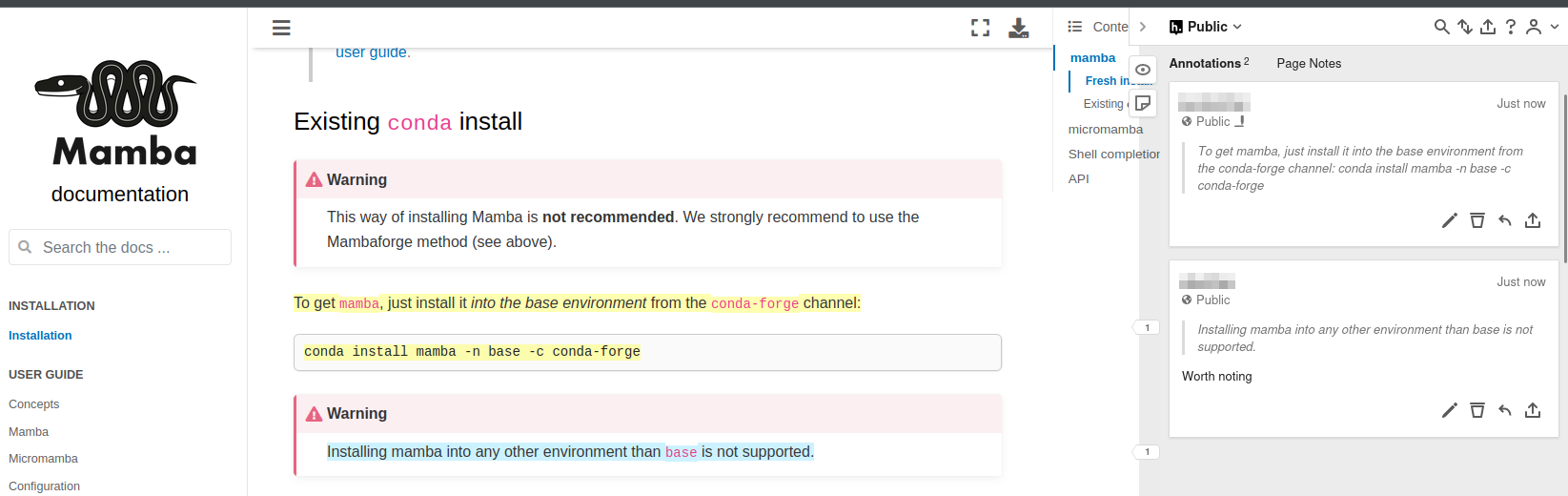
<p>For a note-taking system to work for me, I need to easily import snippets or highlights from other sources, or I’m creating a lot of extra work for myself, that ultimately won’t get done. I discovered a web highlighting service called <a href="https://web.hypothes.is/">hypothes.is</a>. I’ve since seen that there’s another one called <a href="https://glasp.co">Glasp</a>. These tools allow you to make notes and gather snippets of text from any web page. I’m also aware of paid sites such as Readwise, which may be excellent, but I’m allergic to subscription services. Even if you are not interested in the note-making apps, these highlighting tools are really good, and could probably fix my tab-hoarding on their own - you can save highlights and annotations from any web page to private, public or group folders.</p>

<p><img src="/assets/images/obsidian3.png" alt="Hypothesis highlists" class="centre-image" width="800px" /></p>

<p class="image-caption"><em>Annotating web pages with hypothes.is</em></p>

<p>Against my usual FOSS-first approach, I went with Obsidian, due to the wealth of plugins and helpful YouTube videos that made my first steps into this software a bit more straightforward. There’s no proprietary format involved, so Logseq can open vaults created by Obsidian and vice-versa - it’s just a tree structure of markdown files and attachments.</p>

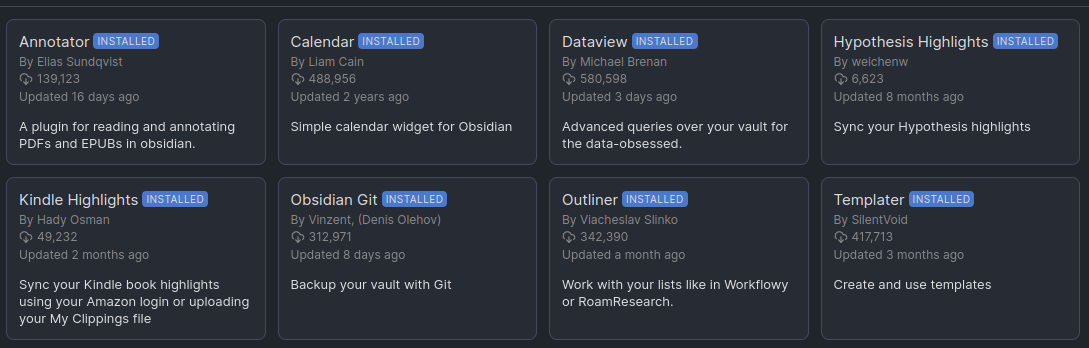
<p>In an effort to have a centralised system for storing information and ideas, I now have a setup that:</p>
<ul>
  <li>performs backups to a private git repository</li>
  <li>imports kindle highlights as obsidian notes</li>
  <li>imports hypothes.is highlights as notes</li>
  <li>allows in-place PDF annotation</li>
</ul>

<p><img src="/assets/images/obsidian2.png" alt="Plugin list" class="centre-image" width="800px" /></p>

<p class="image-caption"><em>Plugins I am using to collate my notes</em></p>

<p>If I’m honest, I had to invest a bit of effort to get started with this, and to overcome the urge to just stick with Google Notes, or a personal wiki. I’m told that the benefit of using something like Obsidian, is that you can employ a <a href="https://zettelkasten.de/introduction/">Zettelkasten</a> method of small atomic notes that are connected with others. This approach is rather organic, and perhaps the benefits of building a web of knowledge are not realised until you invest quite a bit of time into it. I’m going to give it a go this year.</p>]]></content><author><name>Cy Borg</name></author><category term="article" /><category term="blog" /><category term="productivity" /><summary type="html"><![CDATA[The problem: I’m a tab hoarder. Anything I’m working on at the moment is generally kept in an open tab in Firefox, as work in progress. Typically I have 100-200 tabs open. Once I’ve finished a personal project, I close the tabs, sometimes bookmarking them first, but not really filing away the knowledge I’ve acquired in a useful way. Even when I’m documenting work projects, I’m not sure I’ve gathered the supporting information and ideas in a structured way. I’m not sure I’ve opened any bookmarks I’ve made in the last few years. When I want information back, I might fruitlessly search my history and end up using a search from scratch to find the information again. It’s a terrible system, and I rely too much on my memory and open tabs to recall information. Another side-effect is that my thoughts get stored in memory in an unprocessed state. I’m not getting any younger, and my reliance on storing everything in my brain is not future-proof.]]></summary></entry><entry><title type="html">Be more productive with use of your BASH history</title><link href="https://cyb.org.uk/2021/05/03/bash-productivity.html" rel="alternate" type="text/html" title="Be more productive with use of your BASH history" /><published>2021-05-03T00:00:00+00:00</published><updated>2021-05-03T00:00:00+00:00</updated><id>https://cyb.org.uk/2021/05/03/bash-productivity</id><content type="html" xml:base="https://cyb.org.uk/2021/05/03/bash-productivity.html"><![CDATA[<p>If you spend time working in the terminal, whether for work or leisure, a lot
of the commands you type often have a dependency on other recent commands, 
might be repetitive actions, or be very similar to other commands previously
run. Gaining mastery over your shell history is a great way to be more
productive in the terminal.</p>

<p>I’m going to share some tips which improve my speed while using the shell to
perform common sysadmin tasks, or file manipulation.</p>

<h2 id="get-a-better-history">Get a better history</h2>

<p>New users to the Linux command-line might first grasp the <code class="language-plaintext highlighter-rouge">history</code> command, or
perhaps the up/down arrows to
show recent commands. They might have also learned to use tab-complete
extensively, maybe a little too much. They may even use the <code class="language-plaintext highlighter-rouge">ctrl-r</code> command to
search the history. This offers some degree of productivity, but we can do
better than this.</p>

<p>Depending on your operating system, you may have some of the following
suggestions applied by default, whether as a global setting or applied at a
local level in the <code class="language-plaintext highlighter-rouge">.bashrc</code> folder in your home directory. To apply new
settings, I suggest you make a backup of this file, and open it in your
favourite editor. After saving, you can load the new settings with <code class="language-plaintext highlighter-rouge">source
~/.bashrc</code>, or logout/login again.</p>

<h3 id="1-use-histignore-to-remove-pointless-commands-from-history">1. Use HISTIGNORE to remove pointless commands from history</h3>

<p>Some bash commands are used to provide some moment-in-time information but
don’t change your environment, and aren’t useful in your history. Adding the
HISTIGNORE variable to your <code class="language-plaintext highlighter-rouge">.bashrc</code> file allows you to choose which
standalone commands to drop from your history. Here’s an example:</p>

<div class="language-plaintext highlighter-rouge"><div class="highlight"><pre class="highlight"><code>export HISTIGNORE='pwd:exit:fg:bg:top:clear:history:ls:uptime:df'
</code></pre></div></div>

<p>Add to this list or remove from it as you see fit - some people use the <code class="language-plaintext highlighter-rouge">ll</code> as
an alias of <code class="language-plaintext highlighter-rouge">ls -alF</code>. A frequent user might want to stop this from appearing
in their history too.</p>

<p>As a bonus, if you don’t want certain sensitive commands appearing in your
history, for example if you are specifying a password or API key on the command
line, then you can use the following option to make sure that any command
beginning with a space does not appear in the history file:</p>

<div class="language-plaintext highlighter-rouge"><div class="highlight"><pre class="highlight"><code>export HISTCONTROL=ignorespace
</code></pre></div></div>

<p>This isn’t the only option: for example, the <code class="language-plaintext highlighter-rouge">ignoredups</code> option will only
store one copy of a command if the consecutive command is identical.</p>

<h3 id="2-dont-lose-important-history">2. Don’t lose important history</h3>

<p>Without the <code class="language-plaintext highlighter-rouge">histappend</code> option, you will find that if you open multiple
concurrent shell sessions, then only entries from the last exiting shell is
saved (history is saved in memory and written to the history file upon exit).
Another annoyance can be that you may share a root shell with other
administrators on a server, and important history gets lost because the history
file is too small. I usually set a history file size of at least 10,000 entries
to avoid losing an audit trail, or useful commands.</p>

<div class="language-plaintext highlighter-rouge"><div class="highlight"><pre class="highlight"><code>shopt -s histappend
export HISTSIZE=10000
</code></pre></div></div>

<h3 id="3-recalling-commands-effectively">3. Recalling commands effectively</h3>

<p>Now that you have a more streamlined command history, we can do more that
up/down arrow to select previous commands. 
The <code class="language-plaintext highlighter-rouge">!!</code> command recalls the previous line. For example.</p>

<div class="language-plaintext highlighter-rouge"><div class="highlight"><pre class="highlight"><code>$ pwd
/etc
$ !!
pwd
/etc
</code></pre></div></div>

<p>This can be used as part of a command, so <code class="language-plaintext highlighter-rouge">sudo !!</code> will run the previous
command with sudo privileges. You can cause a lot of damage by blindly running
sudo with recalled commands, so you should add <code class="language-plaintext highlighter-rouge">:p</code> on the end of the command
to recall but not actually run the command. It will then appear as the last
command in your history which can be accessed with a single press of the
up-arrow key.</p>

<p>Also you can run a command from your history by putting a <code class="language-plaintext highlighter-rouge">!</code> in front of the
line number provided by the history command. Due to the higher likelihood of
mistyping a number here, I tend to add the <code class="language-plaintext highlighter-rouge">:p</code> to show me the command but not
run it. Then I can do up arrow to show the command in order to check it and run
it with a carriage return</p>

<div class="language-plaintext highlighter-rouge"><div class="highlight"><pre class="highlight"><code>$ rm -r temp/
$ mkdir temp
$ touch temp/test
$ !!
touch temp/test
$ history | tail -4
  179  rm -r temp/
  180  mkdir temp
  181  touch temp/test
  182  touch temp/test
  183  history | tail -5
$ !179:p
rm -r temp
$ !180
touch temp/test
</code></pre></div></div>

<p>You can also call the last used occurrence of a command with a <code class="language-plaintext highlighter-rouge">!</code> in front.
For example, <code class="language-plaintext highlighter-rouge">!ping</code> will run the last command you ran beginning with <code class="language-plaintext highlighter-rouge">ping</code>.
This is a powerful time saver, which I use all the time (e.g. <code class="language-plaintext highlighter-rouge">!vim</code> will open
the vim editor with the last file I opened - handy when performing a few
consecutive edits on a file) but you need to be sure of what you
are doing when using riskier commands. Again, you can add a <code class="language-plaintext highlighter-rouge">:p</code> to show
expansions without actually executing them.</p>

<p>If you are a really risk-averse person, you can skip the use of <code class="language-plaintext highlighter-rouge">:p</code> and add
<code class="language-plaintext highlighter-rouge">shopt -s histverify</code> to your <code class="language-plaintext highlighter-rouge">.bashrc</code> file and every command expanded with
<code class="language-plaintext highlighter-rouge">!</code> will be recalled on the current line but will wait for you to press enter.</p>

<h3 id="4-using-parameters-from-the-previous-line-with--and-">4. Using parameters from the previous line with !$ and !*</h3>

<p>One of my favourite efficiency tips is use of <code class="language-plaintext highlighter-rouge">!$</code> and <code class="language-plaintext highlighter-rouge">!*</code> to refer to parts
of the previous command (as opposed to <code class="language-plaintext highlighter-rouge">!!</code> for the whole command).</p>

<p>Using <code class="language-plaintext highlighter-rouge">!$</code> will expand to the last parameter of the last command, which can
save you a lot of typing or copy-pasting. For example, rename a file, then edit
it:</p>

<div class="language-plaintext highlighter-rouge"><div class="highlight"><pre class="highlight"><code>$ mv list.txt items.txt
$ vim !$
vim items.txt
$ cp !$ shopping.txt
cp items.txt shopping.txt
</code></pre></div></div>

<p>The <code class="language-plaintext highlighter-rouge">!$</code> expands to the value of the last parameter of the previous line, i.e
after the <code class="language-plaintext highlighter-rouge">mv</code> command, <code class="language-plaintext highlighter-rouge">!$</code> expands to <code class="language-plaintext highlighter-rouge">items.txt</code>.</p>

<p>Using <code class="language-plaintext highlighter-rouge">!*</code> will expand the value of all of the parameters on the previous line
(i.e. the whole line except the first word). Not quite as commonly used as <code class="language-plaintext highlighter-rouge">!$</code>
which I use <em>constantly</em> but handy nonetheless. In this example, we remove some
log files and then create some empty versions of the same file:</p>

<div class="language-plaintext highlighter-rouge"><div class="highlight"><pre class="highlight"><code>$ rm /var/log/httpd/access.log /var/log/httpd/error.log
$ touch !*
touch /var/log/httpd/access.log /var/log/httpd/error.log
</code></pre></div></div>

<h3 id="5-replace-a-matching-word-from-the-previous-line-with-">5. Replace a matching word from the previous line with ^</h3>

<p>This is another big time-saver which a use a lot, particularly when you are
manipulating files with long path names. The <code class="language-plaintext highlighter-rouge">^</code> symbol allows you to repeat
the previous command after switching a matching word. For example:</p>

<div class="language-plaintext highlighter-rouge"><div class="highlight"><pre class="highlight"><code>$ rm /var/log/httpd/error.log
$ ^error^access
rm /var/log/httpd/access.log
</code></pre></div></div>

<h3 id="6-use-readline-for-partial-history-search">6. Use readline for partial history search</h3>

<p>This isn’t strictly a BASHism, but it will change your life! Adding certain
values to <code class="language-plaintext highlighter-rouge">~/.inputrc</code> will allow you to do things like this:</p>

<ul>
  <li>type <code class="language-plaintext highlighter-rouge">ssh &lt;up arrow&gt;</code> and cycle through your previous ssh sessions</li>
  <li>type <code class="language-plaintext highlighter-rouge">git &lt;up arrow&gt;</code> and cycle through previous git commands</li>
  <li>type <code class="language-plaintext highlighter-rouge">cp -r &lt;up arrow&gt;</code> and cycle through previous recursive copies you did - notice that it doesn’t have to be just one word</li>
</ul>

<p>It really makes a difference - you will find yourself typing <code class="language-plaintext highlighter-rouge">history | grep
ssh</code>, or searching history aimlessly with arrow keys a whole lot less!</p>

<p>To enable this functionality, create a file called <code class="language-plaintext highlighter-rouge">.inputrc</code> in your home
directory, containing the following lines, then restart your bash session</p>

<div class="language-plaintext highlighter-rouge"><div class="highlight"><pre class="highlight"><code># include the system-wide settings
$include /etc/inputrc
# enable partial history search
"\e[A": history-search-backward
"\e[B": history-search-forward
</code></pre></div></div>

<p>If you aren’t getting left/right arrow functionality, and ctrl-left/right isn’t
working to skip words, you might need to add:</p>

<div class="language-plaintext highlighter-rouge"><div class="highlight"><pre class="highlight"><code># Use arrow keys to move character left/right
"\e[C": forward-char
"\e[D": backward-char
# Use Ctrl and Arrow keys to move along words
"\e[1;3C": forward-word
"\e[1;3D": backward-word
</code></pre></div></div>

<p>One gotcha is that if you are expecting to use regular up/down arrow to browse
your full history, then you need to have a blank line before doing this - not
even any spaces entered!</p>

<p>Let me know how you get on by pinging me on <a href="https://fosstodon.org/@simon">Mastodon</a>.</p>]]></content><author><name>Cy Borg</name></author><category term="article" /><category term="blog" /><category term="howto" /><summary type="html"><![CDATA[If you spend time working in the terminal, whether for work or leisure, a lot of the commands you type often have a dependency on other recent commands, might be repetitive actions, or be very similar to other commands previously run. Gaining mastery over your shell history is a great way to be more productive in the terminal.]]></summary></entry><entry><title type="html">A basic spell-checker for static sites</title><link href="https://cyb.org.uk/2021/03/10/basic-spellcheck.html" rel="alternate" type="text/html" title="A basic spell-checker for static sites" /><published>2021-03-10T00:00:00+00:00</published><updated>2021-03-10T00:00:00+00:00</updated><id>https://cyb.org.uk/2021/03/10/basic-spellcheck</id><content type="html" xml:base="https://cyb.org.uk/2021/03/10/basic-spellcheck.html"><![CDATA[<p>If your blog is generated with a static site generator such as Hugo or Jekyll,
you might not catch spelling errors in your content. An ideal devops-style
workflow should check your markdown quality and spelling automatically when
pushing a commit. As a starting point, I’m going to provide an easy script to
manually spell-check your markdown before committing changes.</p>

<h2 id="how-it-works">How it works</h2>

<p>In the top level of my repository folder, I have a directory called <code class="language-plaintext highlighter-rouge">tests</code>.
This contains a script called <code class="language-plaintext highlighter-rouge">spell-checker.sh</code> and a personal dictionary file
called <code class="language-plaintext highlighter-rouge">.aspell-excluded_words.en_GB.pws</code>. The script loops over any markdown
files in a specified directory and runs <code class="language-plaintext highlighter-rouge">aspell</code> on the markdown files found
within. I’m making an assumption you are on a Unix-like system with the
popular <code class="language-plaintext highlighter-rouge">aspell</code> package installed.</p>

<p>The script can be found at the bottom of the article. It is mostly comprised of
comments and workaround to avoid checking code blocks and comments, then it
checks spelling using the aspell system dictionary, plus any words you have
added to your own dictionary file.</p>

<h2 id="the-personal-dictionary-file">The personal dictionary file</h2>

<p>The personal dictionary is a list of words you consider to be good, but do not
exist in the system dictionary. My one tends to be full of technical words and
brand names. Of course you could use a pre-made list if you have one.</p>

<p>To make a new personal dictionary file in the tests folder, do</p>

<div class="language-plaintext highlighter-rouge"><div class="highlight"><pre class="highlight"><code>echo "personal_ws-1.1 en" &gt; tests/.aspell-excluded_words.en_GB.pws
</code></pre></div></div>

<p>After that, add any personal words, one per line.
the first few lines of my personal dictionary look like this:</p>

<div class="language-plaintext highlighter-rouge"><div class="highlight"><pre class="highlight"><code>personal_ws-1.1 en
ActivityPub
ADSL
blocklist
Bomberman
</code></pre></div></div>

<p>Now we are ready to go.</p>

<h2 id="first-run">First run</h2>

<p>Even with only a handful of blog posts, the first time you run the script may
produce hundreds of words considered “bad”, because we need to populate our
personal dictionary. If you have hundreds of posts and you can’t face the idea,
you could try checking against this year’s posts only, perhaps.</p>

<p>Run the script from the top level of your repository directory, with</p>

<div class="language-plaintext highlighter-rouge"><div class="highlight"><pre class="highlight"><code>./tests/spell-checker.sh`
</code></pre></div></div>

<p>To filter the output to just print the list of words not recognised by either
the system dictionary or the personal one, we can run</p>

<div class="language-plaintext highlighter-rouge"><div class="highlight"><pre class="highlight"><code>./tests/spell-checker.sh | grep '\-\-\-'
--- compiz
--- Deepin
--- Digg
--- distro
--- Distros
--- Docky
--- flatpak
--- FOSS
--- KDE
--- kdenlive
--- LTS
--- PPA
--- RedHat
&lt;snip&gt;
</code></pre></div></div>

<p>Ok, this is useful data. If you think these are mostly good words, you can add
them to the personal dictionary with:</p>

<div class="language-plaintext highlighter-rouge"><div class="highlight"><pre class="highlight"><code>./tests/spell-checker.sh | grep '\-\-\-' | \
 awk '{print $2}' &gt;&gt; tests/.aspell-excluded_words.en_GB.pws
</code></pre></div></div>

<p>Open the file in a text editor and keep only the lines with words you consider
good.</p>

<p>Now, when you run <code class="language-plaintext highlighter-rouge">./tests/spell-checker.sh</code> you should only see results for
badly spelled words, along with the line number where it occurs, and a total
number of errors at the end. Keep editing either your personal dictionary or
the misspelled words in your blog posts until you get to zero errors!</p>

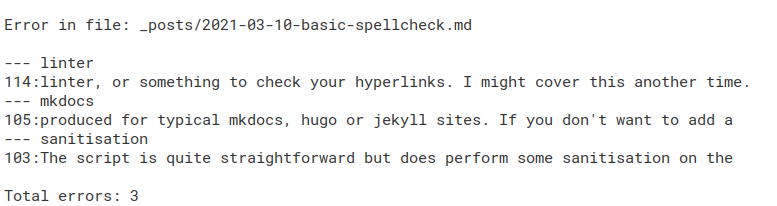
<p><img src="/assets/images/spellcheck.png" alt="Output from script" class="centre-image" /></p>

<p class="image-caption"><em>Running the spell checker on this post. I will add these to the dictionary</em></p>

<p>The script is quite straightforward but does perform some sanitisation on the
markdown first to cope with code blocks and html. It should work with markdown
produced for typical mkdocs, hugo or jekyll sites. If you don’t want to add a
particular word to your personal dictionary, but want the spell checker to
ignore it, you can surround it with <code class="language-plaintext highlighter-rouge">&lt;!--IGNORE_SPELLING_START--&gt;</code> and
<code class="language-plaintext highlighter-rouge">&lt;!--IGNORE_SPELLING_END--&gt;</code> comments.</p>

<p>One way you might want to modify your script is to check only a single file if
it is passed as a parameter perhaps.</p>

<p>Once you have a working spell checker, you might want to apply a markdown
linter, or something to check your hyperlinks. I might cover this another time.</p>

<script src="https://gist.github.com/cyborguk/34478b49e884d47456515dbdf2d0acd0.js"></script>

<p>Let me know how you get on by pinging me at <a href="https://fosstodon.org/@simon">Mastodon</a>.</p>]]></content><author><name>Cy Borg</name></author><category term="article" /><category term="blog" /><category term="howto" /><summary type="html"><![CDATA[If your blog is generated with a static site generator such as Hugo or Jekyll, you might not catch spelling errors in your content. An ideal devops-style workflow should check your markdown quality and spelling automatically when pushing a commit. As a starting point, I’m going to provide an easy script to manually spell-check your markdown before committing changes.]]></summary></entry><entry><title type="html">The unhelpful error</title><link href="https://cyb.org.uk/2021/02/16/the-unhelpful-error.html" rel="alternate" type="text/html" title="The unhelpful error" /><published>2021-02-16T00:00:00+00:00</published><updated>2021-02-16T00:00:00+00:00</updated><id>https://cyb.org.uk/2021/02/16/the-unhelpful-error</id><content type="html" xml:base="https://cyb.org.uk/2021/02/16/the-unhelpful-error.html"><![CDATA[<p>Errors are annoying, but more annoying are errors that trick you into wasting a
day going round in circles and questioning your sanity.</p>

<p>It all started with an error message:</p>

<div class="language-text highlighter-rouge"><div class="highlight"><pre class="highlight"><code>error while loading shared libraries: libQt5Core.so.5:
cannot open shared object file: No such file or directory
</code></pre></div></div>

<p>I had been trying to install a new version of some science-ware application.
Compared to other 20-year-old scientific applications, at least this is open
source, and free from weird and unnecessary licencing constraints. Also, they
are hosted on GitHub now, rather than some antiquated version control system
nobody else uses. It has a lot going for it, despite a few quirks of
installation, and the fact that I don’t know how to use it.</p>

<p>It’s also a graphical application for visualisation of large datasets, so rather
than install a load of X-window and dependencies into our environment, I’m
installing the application and pre-requisite packages into a container.</p>

<p>The software had received a major version upgrade since I last installed it
in 2018. After refreshing my container recipe, I built a new container, ran it,
but received the aforementioned error message.</p>

<p>Immediately my thoughts went to missing Qt libraries in my container or missing
paths. I reached out to a few virtual buddies in my favourite telegram group,
and received some helpful suggestions. I went back to square one, making sure
I’d followed the instructions correctly. The installation comes in the form of
a tarball which you extract, and then run an install script. On closer
inspection, the required Qt libraries were provided in the tarball, so this
didn’t appear to be a lack of Qt package in my container. Meanwhile I had
rebuilt the container a few times by now, using a variety of different
supported Ubuntu and CentOS base containers.</p>

<p>Admittedly, troubleshooting containers is a bit more tricky than using the
native OS, but it also has benefits that you can blow away your failed effort
and retry with only 1 thing changed, without polluting your system in the
process.</p>

<p>I had to join a meeting, which gave me some reflection time, thinking about
<code class="language-plaintext highlighter-rouge">ldd</code> and <code class="language-plaintext highlighter-rouge">$LD_LIBRARY_PATH</code>. I’ve worked with this stuff for years, and I
thought I knew what the error meant, that the library couldn’t be found in the
system. I had checked and double-checked, and it wasn’t a missing library. It
felt like I was being trolled.</p>

<p>I had been doing some other background tasks in the meantime, to remain
productive while I churned over this issue in my mind, or while I waited for
containers to build. I had done a fair few internet searches, but still only in
a general way, because I still didn’t know if this was specific to the
application, or to this version of the application, or something else.</p>

<p>Finally, I had a breakthrough. Searching for the specific Qt5 error produced a
lot of noise, but I noticed something I had seen earlier in the day when the issue
was more nebulous in my mind. By now I believed that my paths were correct, and
I had installed the application correctly, so I took a bit more interest when I
saw <a href="https://itectec.com/ubuntu/ubuntu-ubuntu-18-4-libqt5core-so-5-cannot-open-shared-object-file-no-such-file-or-directory/">this page</a>.</p>

<blockquote>
  <p>“The kernel needs to be at least 3.15 for a very real but (to me) esoteric
reason: “Qt 5.10 uses the <a href="https://man7.org/linux/man-pages/man2/rename.2.html">renameat2</a>
system call which is only available since kernel 3.15”.</p>
</blockquote>

<p>Although I was running newer distros in my containers, the underlying operating
system was CentOS 7, and hence an older kernel.</p>

<p>This felt like a million miles from what the error message had told me.</p>

<p>But as soon as I saw this, I knew it was the fix. I had to use the <code class="language-plaintext highlighter-rouge">strip</code>
command to remove a piece of code that is only supported in later kernels. And
it worked. I don’t feel altogether comfortable with this kind of kludge in a
production environment, even if user testing is successful. However, at last
the mystery is solved. I lost a few hours on this rather niche issue, but it’s
all good experience and I’m always learning!</p>]]></content><author><name>Cy Borg</name></author><category term="article" /><category term="FOSS" /><category term="Sysadmin" /><summary type="html"><![CDATA[Errors are annoying, but more annoying are errors that trick you into wasting a day going round in circles and questioning your sanity.]]></summary></entry><entry><title type="html">Command-line downloads from sites which require login</title><link href="https://cyb.org.uk/2020/07/05/wfh-downloads.html" rel="alternate" type="text/html" title="Command-line downloads from sites which require login" /><published>2020-07-05T00:00:00+00:00</published><updated>2020-07-05T00:00:00+00:00</updated><id>https://cyb.org.uk/2020/07/05/wfh-downloads</id><content type="html" xml:base="https://cyb.org.uk/2020/07/05/wfh-downloads.html"><![CDATA[<p>…also known as “Solving the Working from Home bandwidth problem”. A common
task I perform as part of my job is to download large files from websites onto
a server. Often my aim is to download such files directly onto the Linux servers
residing in the datacentre, and most of the time this is straight-forward: open
an ssh connection to the server, and pass the url to the <code class="language-plaintext highlighter-rouge">wget</code> command. The
file is promptly downloaded directly to the server at several Gigabits per second.</p>

<p>However, occasionally (for example, downloading 300MB of CUDNN libraries from
NVIDIA, or downloading large machine learning datasets), I am required to first
authenticate in a web browser before I am able to download these files. If I
then try passing the download URL to <code class="language-plaintext highlighter-rouge">wget</code> on a remote server, I’m likely to
be denied permission, since I don’t have the session cookies on the server to
track my authenticated session.</p>

<p>When working at the office, I usually get around this annoyance by first
using the browser to download the files to a temporary folder on my desktop PC,
and then subsequently upload the files to the destination server. It’s not
ideal, as it’s a 2-step process that needs my attention for each stage, but
since I have a high bandwidth connection to both my PC and the server, it’s
quite a quick process, unless I’m downloading a very large file or I
get otherwise distracted and forget to complete the task.</p>

<p>However, I’ve spent the last 4 months working from home, and while my ADSL
bandwidth is sufficient for video calls and streaming TV, downloading and
subsequently uploading a couple of 300MB+ files over my ADSL connection
introduces an unnecessary hour-long bottleneck into the workflow, particularly
due to my relatively slow upload speeds. This really forces the issue of
finding a more direct method of downloading the type of files that are only
downloadable via an authenticated session.</p>

<p>The challenge we have is to log in with the browser, locate the desired file to
download, capture the browser session information and continue the download on
a remote server. Turns out, it’s not so hard.</p>

<p>Within Firefox, open the Network section of the Developer tools with
<em>Ctrl-Shift-E</em>. If using Google Chrome, hit <em>Ctrl-Shift-I</em> and choose the
Network tab if it’s not already selected.</p>

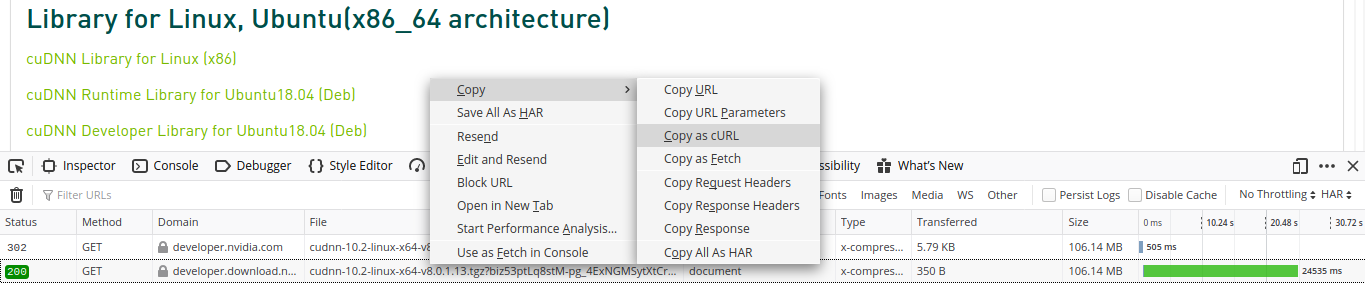
<p>Then click the item you want to download. The Save/Open browser dialog appears,
and the download request will appear as 2 rows in the network monitor. At this
point we can grab the session information without actually proceeding with the
download in the browser. Right-click the longer URL that shows the session
information as part of the filename. You can then either choose <em>Copy-&gt;Copy
URL</em> or <em>Copy-&gt;Copy as cURL</em>. You can then cancel the download request.</p>

<p><img src="/assets/images/curl.png" alt="Grabbing the curl data" class="centre-image" width="800px" /></p>

<p class="image-caption"><em>Grabbing the curl data for a download from an authenticated session</em></p>

<p>If you choose <em>Copy as cURL</em>, the whole curl command is now copied to your
clipboard. Paste it in a terminal on the remote server, add add <code class="language-plaintext highlighter-rouge">-o
filename.tgz</code> or a redirect <code class="language-plaintext highlighter-rouge">&gt; filename.tgz</code> to save the contents as a file.</p>

<p><img src="/assets/images/curl2.png" alt="Downloading on a remote server" class="centre-image" width="800px" /></p>

<p class="image-caption"><em>Using the session data to download on a remote server</em></p>

<p>If you choose to copy as a URL, you need to type <code class="language-plaintext highlighter-rouge">wget</code> before pasting your
clipboard contents, and you will probably want to name the file with <code class="language-plaintext highlighter-rouge">-O</code>
option, e.g. <code class="language-plaintext highlighter-rouge">wget &lt;url from clipboard&gt; -O filename.tgz</code></p>

<p>There are also other ways around this problem. You could export cookie files and
pass them to wget/curl. In the past, there have been browser extensions which
functioned with varying degrees of success. There may be other more fiddly
solutions for a fully CLI workflow if you want to automate or repeat the same
task regularly. However, for the occasional requirement where you want to
initially want to login and locate the file within a browser, this ad-hoc
workaround of getting the browser to do most of the work for you, is
easy to remember and seems to work with minimum of fuss.</p>]]></content><author><name>Cy Borg</name></author><category term="article" /><category term="howto" /><category term="work" /><summary type="html"><![CDATA[…also known as “Solving the Working from Home bandwidth problem”. A common task I perform as part of my job is to download large files from websites onto a server. Often my aim is to download such files directly onto the Linux servers residing in the datacentre, and most of the time this is straight-forward: open an ssh connection to the server, and pass the url to the wget command. The file is promptly downloaded directly to the server at several Gigabits per second.]]></summary></entry></feed>